Setup Organization Hierarchy
A hierarchy organizes your ingested data, and can be as simple or as complex as your workspace needs. It makes it quick to filter the data you query using the org tree, and it is the basis for limiting access: users see data in the organizations they are granted access to and all sub-organizations.
Most workspaces start their hierarchy in the Workspace Setup Wizard. The wizard offers two paths, Recommended defaults and I'll configure orgs myself.
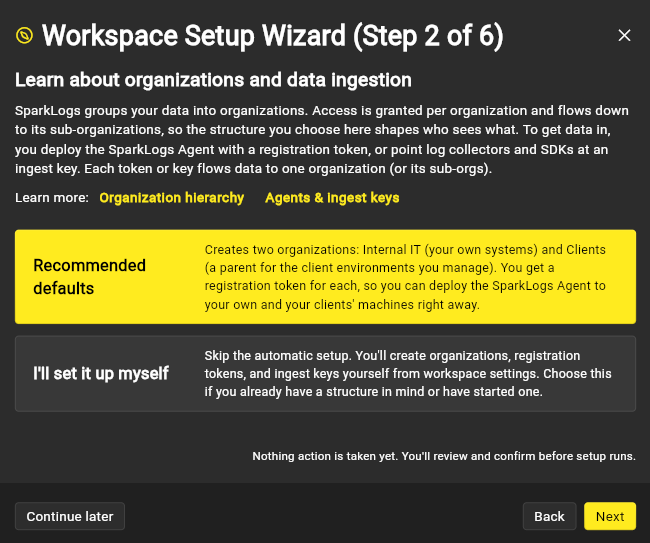
What recommended defaults create
Recommended defaults depend on how you told the wizard you'll use SparkLogs and are a good starting point for most users. This path creates a starting organization hierarchy plus the credentials you need to start sending data. You can rename, restructure, or add organizations afterward.
| Persona | Organizations created | Credential per org | Also |
|---|---|---|---|
| MSP / IT | Internal IT and Clients (both at the top level) | A registration token in each, to deploy the SparkLogs Agent | — |
| SRE / Dev | Dev, Staging, Production | An Ingest Key in each, for collectors and SDKs | — |
| Game / App Developer | Dev, Staging, Production | An Ingest Key in each | App analytics enabled |
For MSP / IT, the wizard creates Clients as a single parent for your client environments. It does
not create a separate organization per client. You add client organizations as you onboard each
one, automatically, by deploying with a per-client identifier. See
mapping MSP clients to organizations.
You can tailor this afterwards as much as you want. For example, create a "High Compliance Clients" parent organization for clients that only a subset of your team should have access to.
Advanced: design your own hierarchy
Choose I'll configure orgs myself to skip the default scaffolding and build the hierarchy by hand, or
adjust it any time later. In the app, click the Configure sidebar button:

and then click the Organizations tab.
There is already a root organization that matches your workspace name. Create hierarchical organizations under it as needed. Here is one example:

Consider how you want to grant access to data for other users. Users are granted access to an organization and all of its sub-organizations, so shape the hierarchy around the access boundaries you need.
- SRE / dev teams: organizations for your environments (dev, QA, staging, prod), apps, or regions.
- Internal IT: organizations for different departments or sites.
- MSPs: one parent organization for your clients, with a sub-organization per client. Create the client sub-organizations automatically rather than by hand. See mapping MSP clients to organizations.
As a best practice, do not create a separate organization for each agent or device. Each log event
already records the system that generated it, and a standard source field carries the source
device. Organizations group data from many agents together.
Mapping MSP clients to organizations
For MSPs, the goal is one organization per client, but you should not create those sub-organizations by hand. Instead:
- Keep one parent organization for clients (the wizard names it
Clients). - Deploy the SparkLogs Agent with a registration token from that parent, carrying each client's RMM or PSA client ID.
- On first registration, the agent auto-creates or links that client's sub-organization under the parent, keyed by the ID. No pre-creating, and no one-off org per client.
This keeps client data isolated, scales across your fleet from a single package, and avoids a pile of hand-made organizations that drift out of sync with your RMM or PSA. For the full mechanics, including single-org vs. client-org deployment and the client-name label, see deployment scope.